
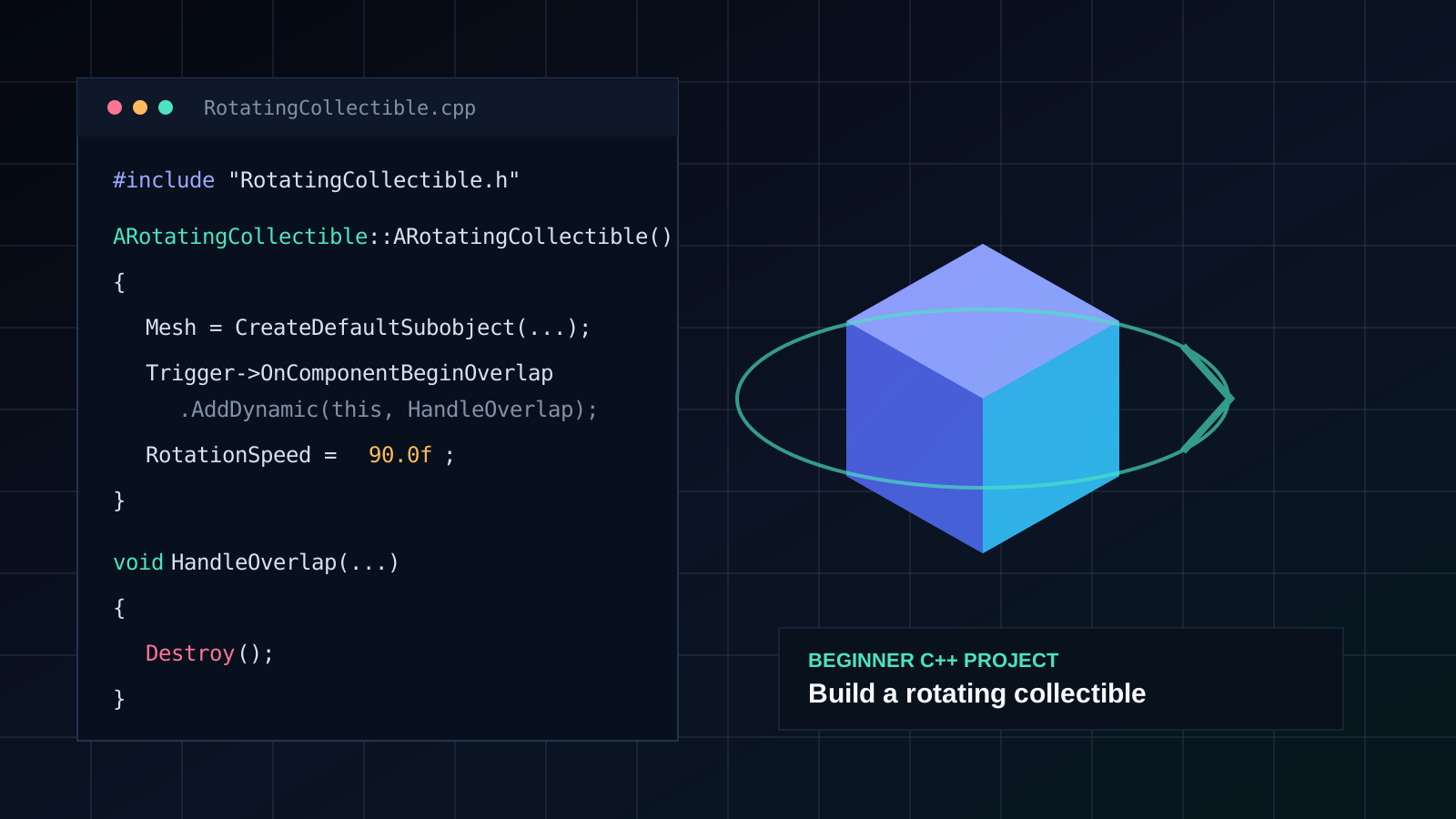
By the end, you will have a collectible that rotates, detects the player, prints a message, and disappears.
You do not need previous C++ experience. The goal is to understand the basic workflow—not to memorize every keyword.
What is C++?
C++ is a programming language used to describe rules and behavior. In a game, those rules can decide how a character moves, when an enemy takes damage, what happens when an item is collected, or how a save file is written.
Think of code as a precise set of instructions. Unreal Engine provides the rendering, physics, animation, audio, editor, and many ready-made systems. Your C++ classes tell those systems what your game should do.
You are creating game-specific classes that use Unreal Engine features.
How Unreal Engine uses C++
Unreal C++ is normal C++ combined with Unreal-specific classes and macros. The most important beginner concepts are:
- Class: a reusable definition. For example, a collectible class describes what every collectible can do.
- Object: one real instance of that class inside the game.
- Actor: an Unreal object that can be placed or spawned in a level.
- Component: one part of an Actor, such as a mesh, collision shape, camera, or movement behavior.
- UPROPERTY: tells Unreal that a variable should participate in reflection, the editor, serialization, or other engine systems.
- UFUNCTION: tells Unreal that a function participates in engine features such as overlap events.
Actors can own a hierarchy of components, and their root component provides the transform used for location, rotation, and scale. That is why our collectible will be one Actor made from several components.
What you will build
The visible object.
Detects the player.
Rotates the Actor without Tick.
Logs the pickup and destroys it.
This is small, but it uses the same core ideas found in larger systems: classes, components, editor properties, events, and runtime behavior.
Step 1: create a C++ project
- Open Unreal Engine.
- Create a new Games project.
- Choose a Blank template.
- Select C++ instead of Blueprint.
- Name the project something simple, such as
BeginnerCppGame. - Create the project and allow Unreal to generate the source files.
You need a supported C++ development environment. On Windows, that normally means Visual Studio 2022 with the Game development with C++ workload and the required Windows SDK.
Step 2: create the Actor class
- In Unreal Editor, open Tools → New C++ Class.
- Select Actor as the parent class.
- Name the class
RotatingCollectible. - Create the class and open the generated files in Visual Studio or Rider.
Unreal creates two important files:
The declaration. It describes the class, variables, components, and functions.
The implementation. It contains the instructions that run.
Step 3: replace the header file
Open RotatingCollectible.h, remove its current contents, and paste this code.
#pragma once

#include "CoreMinimal.h"
#include "GameFramework/Actor.h"
#include "RotatingCollectible.generated.h"

class UPrimitiveComponent;
class USphereComponent;
class UStaticMeshComponent;
class URotatingMovementComponent;
struct FHitResult;

UCLASS()
class ARotatingCollectible : public AActor
{
    GENERATED_BODY()

public:
    ARotatingCollectible();

protected:
    virtual void BeginPlay() override;

private:
    UPROPERTY(VisibleAnywhere, Category = "Collectible")
    TObjectPtr<UStaticMeshComponent> Mesh;

    UPROPERTY(VisibleAnywhere, Category = "Collectible")
    TObjectPtr<USphereComponent> Trigger;

    UPROPERTY(VisibleAnywhere, Category = "Collectible")
    TObjectPtr<URotatingMovementComponent> RotatingMovement;

    UPROPERTY(EditAnywhere, Category = "Collectible", meta = (ClampMin = "0.0"))
    float RotationSpeed = 90.0f;

    UFUNCTION()
    void HandleOverlap(
        UPrimitiveComponent* OverlappedComponent,
        AActor* OtherActor,
        UPrimitiveComponent* OtherComponent,
        int32 OtherBodyIndex,
        bool bFromSweep,
        const FHitResult& SweepResult
    );
};RotatingCollectible.generated.h must remain the final include in the header file.
Step 4: replace the source file
Open RotatingCollectible.cpp, remove its current contents, and paste this code.
#include "RotatingCollectible.h"

#include "Components/SphereComponent.h"
#include "Components/StaticMeshComponent.h"
#include "GameFramework/RotatingMovementComponent.h"

ARotatingCollectible::ARotatingCollectible()
{
    PrimaryActorTick.bCanEverTick = false;

    Mesh = CreateDefaultSubobject<UStaticMeshComponent>(TEXT("Mesh"));
    SetRootComponent(Mesh);
    Mesh->SetCollisionEnabled(ECollisionEnabled::NoCollision);

    Trigger = CreateDefaultSubobject<USphereComponent>(TEXT("Trigger"));
    Trigger->SetupAttachment(Mesh);
    Trigger->SetSphereRadius(90.0f);
    Trigger->SetCollisionEnabled(ECollisionEnabled::QueryOnly);
    Trigger->SetCollisionResponseToAllChannels(ECR_Ignore);
    Trigger->SetCollisionResponseToChannel(ECC_Pawn, ECR_Overlap);
    Trigger->OnComponentBeginOverlap.AddDynamic(
        this,
        &ARotatingCollectible::HandleOverlap
    );

    RotatingMovement = CreateDefaultSubobject<URotatingMovementComponent>(
        TEXT("RotatingMovement")
    );
}

void ARotatingCollectible::BeginPlay()
{
    Super::BeginPlay();

    RotatingMovement->RotationRate = FRotator(
        0.0f,
        RotationSpeed,
        0.0f
    );
}

void ARotatingCollectible::HandleOverlap(
    UPrimitiveComponent* OverlappedComponent,
    AActor* OtherActor,
    UPrimitiveComponent* OtherComponent,
    int32 OtherBodyIndex,
    bool bFromSweep,
    const FHitResult& SweepResult
)
{
    if (!IsValid(OtherActor) || OtherActor == this)
    {
        return;
    }

    UE_LOG(
        LogTemp,
        Display,
        TEXT("Collectible picked up by %s"),
        *OtherActor->GetName()
    );

    Destroy();
}
Step 5: compile and use the collectible
- Save both files.
- Build the project from Visual Studio or Rider. For small implementation changes, Live Coding may also work, but after reflected class-layout changes it is safer to rebuild and restart the Editor.
- Return to Unreal Editor.
- Find RotatingCollectible under the project C++ Classes folder.
- Right-click it and create a Blueprint child named
BP_RotatingCollectible. - Open that Blueprint child and select the Mesh component.
- Assign any Static Mesh, such as a cube, sphere, coin, or crystal.
- Drag
BP_RotatingCollectibleinto the level. - Press Play and walk into it.
The Blueprint child is only being used as a convenient content asset where you choose the mesh and adjust exposed values.
What the code is doing
CreateDefaultSubobjectCreates components that belong to every instance of this class.
SetRootComponentMakes the mesh the transform root of the Actor.
SetupAttachmentAttaches the trigger to the mesh component hierarchy.
AddDynamicConnects the overlap event to your C++ function.
EditAnywhereAllows RotationSpeed to be changed in the Unreal Editor.
Destroy()Removes this Actor from the world after collection.
The class does not use Tick(). Unreal’s rotating movement component performs the continuous rotation, which keeps the example simple and avoids unnecessary per-frame code.
Common beginner errors
The class name, filename, or generated include probably does not match. Confirm all three use RotatingCollectible.
No Static Mesh has been assigned to the Mesh component.
Confirm your player uses the Pawn collision channel and that the Sphere Trigger is large enough.
Close Unreal Editor, build the project from the IDE, then reopen it. Reflection-related header changes are not always safe to patch into a running Editor session.
Your next challenge: make collectibles worth points
Add this property inside the class, next to RotationSpeed:
UPROPERTY(EditAnywhere, Category = "Collectible", meta = (ClampMin = "1"))
int32 Points = 10;
Now every collectible can have a different value in the Editor. The next proper step would be to create a score component or player-state system and send the point value to it before calling Destroy().
You created an Unreal Actor in C++, assembled it from components, exposed a property to the Editor, reacted to an overlap, and changed the game world.
That workflow is the foundation of larger C++ gameplay systems.